

TikTok · paste a link
How to import a TikTok video or comments by pasting the URL
Direct answer
Yes. Copy a TikTok video link (tiktok.com/@user/video/...), paste it into Provoon Import under TikTok, then pick one of two options: Video (preview and Add the clip) or Import comments (Get comments and Add the ones you want). Nothing goes public until you approve it and place it on your Wall of Fame.
Why paste a TikTok URL
TikTok already holds short social proof - launch clips and comment threads with real handles. Screenshotting into Canva is slow. Provoon takes the same tiktok.com/@.../video/... link and gives you two clear paths: import the video itself, or pull comments and Add only the quotes worth showing next to pricing or a Wall of Fame.
How to import TikTok into Provoon
- 1
Paste the TikTok URL and choose Video or Import comments
In your wall, open Import, choose TikTok, stay on Import from URL, and paste the video link into TikTok URL. Then pick one option: Video adds the clip to your stories (uses one video on your plan). Import comments fetches replies under that video. Copy the link from TikTok share or the browser address bar before you paste.
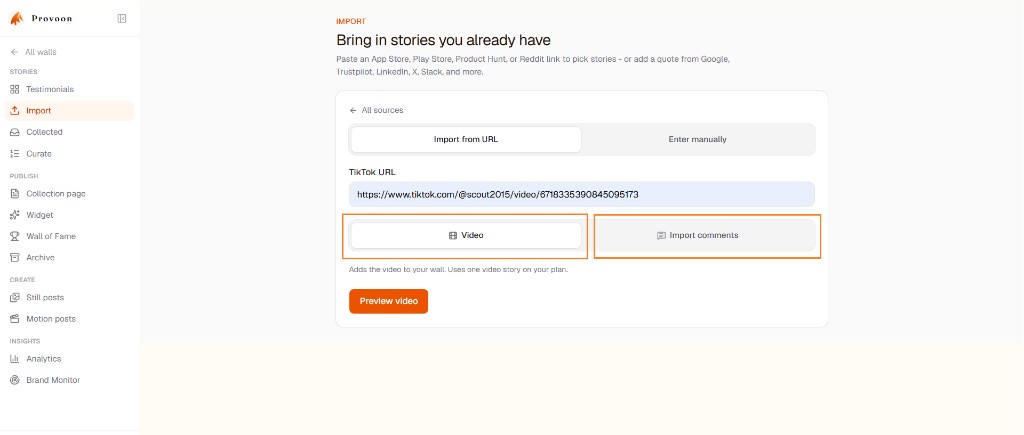
Provoon Import screen with a TikTok URL pasted and Video vs Import comments options - 2
Option A - Import comments, then Add
Select Import comments and click Get comments. Provoon lists comments with name, date, and text. Click Add on specific, useful lines - skip empty reactions. Business plan fetches up to 100 comments per page. You can return later for more.
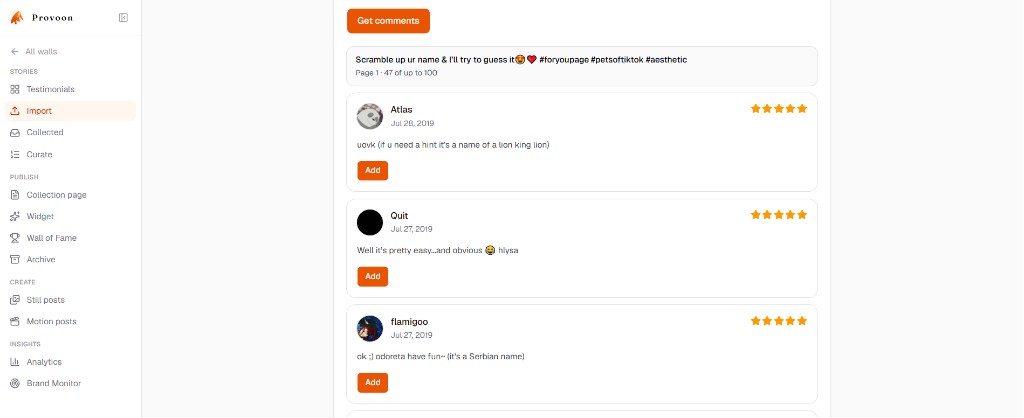
List of TikTok comments in Provoon after Get comments, with Add on each comment card - 3
Option B - Video, then Add video
Select Video and click Preview video. Check the clip, caption, and account name, then click Add video. That saves the TikTok as a video story in your library - still not public until you approve and place it.
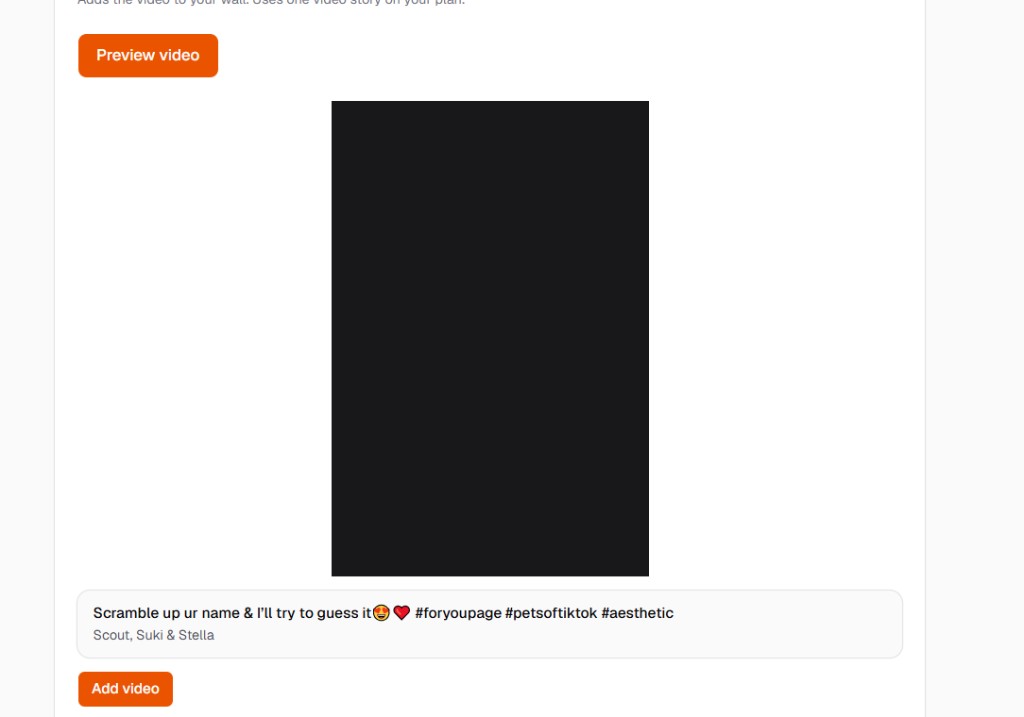
TikTok video preview in Provoon with Preview video and Add video buttons - 4
Approve and show it on your Wall of Fame
Open Collected if the story needs approval, then include it in Curate / Wall of Fame or an on-site widget. Imports and fresh collection submissions share one inbox, so TikTok clips and comments can sit next to YouTube, X, or Google reviews.
What gets saved from TikTok
Video mode stores the clip as a video story with caption and account when available, plus the TikTok URL as source. Comments mode stores author name, comment text, date when available, a TikTok source badge, and the video URL as the linked source. Edit carefully without changing meaning. Only republish content you have the right to show.
Practical tips
- You have two options: Video (Preview video, then Add video) or Import comments (Get comments, then Add).
- Prefer tiktok.com/@username/video/... links over a bare profile URL.
- Run one path per fetch; switch options and reuse the same URL anytime.
- Nothing auto-publishes. Add, approve, then place proof near decisions (pricing, booking, CTA).
- If consent or visibility feels unclear for a comment, leave it out or ask again with a Provoon collection link.
FAQ
What are the two TikTok import options?
Video brings the TikTok clip into your Provoon library as a video story (Preview video, then Add video). Import comments fetches comments on that URL so you can Add only the ones you want. Pick one path per fetch - you can run the other later with the same link.
Do I need a TikTok API key?
No. Paste a public TikTok video URL. Provoon does not ask you to create a developer app.
What TikTok URL should I paste?
A specific video link such as tiktok.com/@username/video/ID. Profile-only URLs will not import a single clip or its comments.
Do imported TikTok items publish automatically?
No. Click Add or Add video, then approve and place them on your Wall of Fame like any other story.
Will new comments sync by themselves later?
Treat import as a curated pull, not a live mirror. When you want fresh comments, paste the same URL, choose Import comments, and Add again.
Keep going
Have the Maps link ready? Paste it in Provoon, Add the reviews you want, and publish the wall.